
If you have a smart TV or a regular TV with an HDMI port, using Chromecast with IPTV is one of the simplest ways to enjoy live channels, sports, and on-demand content on a big screen. Whether you are in Nicosia, Limassol, or anywhere else in Cyprus, this guide walks you through everything you need to know — from setup to troubleshooting.
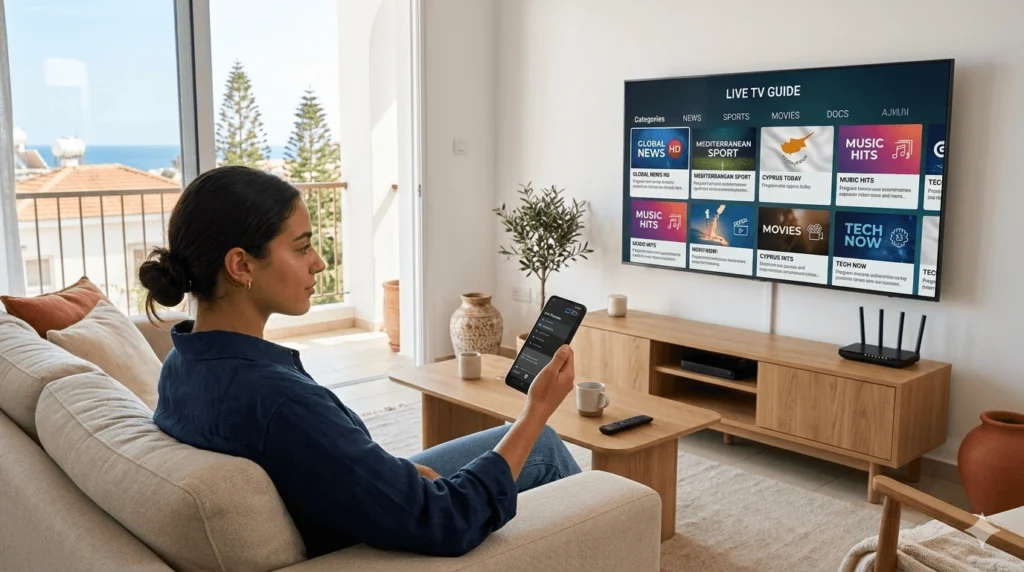
Google Chromecast is a small streaming device that plugs into your TV’s HDMI port. Once connected to your Wi-Fi network, it allows you to “cast” content from your phone, tablet, or computer directly to your television screen.
Chromecast does not work like a traditional remote control. Instead, your phone acts as the controller. You choose what to play on your device, hit the cast icon, and the content plays on your TV. Your phone is then free to lock or switch apps while the stream continues uninterrupted.
There are several Chromecast models available, including the standard Chromecast, Chromecast with Google TV, and the older Chromecast 3rd generation. All of them support casting from mobile apps.
IPTV (Internet Protocol Television) delivers live TV and video content over the internet rather than through a satellite dish or cable connection. Many IPTV apps are built with Chromecast support, meaning they include a native cast button inside the app itself.
When you tap that icon, the app sends a signal to the Chromecast device on your TV, and playback begins directly on the big screen — without mirroring your entire phone screen. This results in better picture quality and lower battery drain on your device.
Before you start, make sure you have the following:
Internet Speed
Compatible Devices
IPTV Apps That Support Casting Not all IPTV players include a Chromecast button. The most widely compatible options include IPTV Smarters Pro, TiviMate, GSE Smart IPTV, and Perfect Player. Check that your chosen app lists Chromecast as a supported feature before downloading.
Android devices offer the most seamless experience with Chromecast because Google’s ecosystem is natively integrated.
Casting from an iPhone requires a few extra steps because Apple does not natively support Chromecast in the same way as Android.
Some IPTV players are built specifically with Chromecast integration in mind. When you open the video player within these apps, a cast icon appears automatically as long as your Chromecast is on the same network. This is the easiest method and requires no extra configuration.
IPTV Smarters Pro — Available on Android and iOS. Supports M3U playlists and includes a working cast button on both platforms. Clean interface and good stability.
TiviMate — Android only, but widely regarded as one of the smoothest IPTV players available. Built-in Chromecast support with an intuitive EPG layout.
GSE Smart IPTV — Supports both Android and iOS. Includes Chromecast integration and advanced playlist management options.
Perfect Player — A lightweight Android option for users who prefer a simple interface. Chromecast support is available but requires a bit more manual setup.
For a reliable IPTV service that works well with these apps in Cyprus, visit iptvcyprus4k.com to explore available options.
IPTV Not Casting to TV
Buffering and Freezing
Connection Errors
If you want a smooth, reliable experience when streaming IPTV in Cyprus, keep these tips in mind:
For a deeper look at how Chromecast works technically and tips straight from Google, the official Chromecast support page is a reliable resource.
Can I use Chromecast with any IPTV app? Not all IPTV apps support Chromecast natively. Apps like IPTV Smarters Pro, TiviMate, and GSE Smart IPTV are known to work well. Always check the app’s feature list before installing.
Why is my IPTV not casting to the TV? The most common reason is that your phone and Chromecast are on different Wi-Fi networks. Make sure both are connected to the same network. Also check that your IPTV app has the cast feature enabled in its settings.
Do I need a VPN to use IPTV in Cyprus? It depends on your IPTV provider and the content you are accessing. Some users in Cyprus choose to use a VPN for privacy reasons, though it is not always required for standard streaming. A VPN can sometimes affect streaming speed, so test with and without to see which works better for you.
Is Chromecast better than a dedicated IPTV box? Both have their advantages. Chromecast is affordable, compact, and easy to use if you already have a smartphone. A dedicated IPTV box typically offers a more built-in remote-control experience and may handle higher stream loads more efficiently. For casual users, Chromecast with IPTV is a perfectly capable setup.
Does Chromecast work with 4K IPTV streams? Yes — the Chromecast with Google TV model supports 4K HDR streaming. Make sure your IPTV provider offers 4K content and that your internet connection is strong enough to handle it (typically 25 Mbps or more).
If you are looking to get started with a reliable IPTV service in Cyprus that works smoothly with Chromecast, feel free to reach out via WhatsApp for a friendly conversation about the right plan for your needs. No pressure — just straightforward help to get you connected.
Reliable IPTV service in Cyprus. Enjoy live TV, movies, and series with high-quality streaming, premium channels, and fast customer support.
© 2026 IPTV Cyprus. All rights reserved.
WhatsApp us